PDF Scanner app - TapScanner
- 4.5
- Rating
- 100.00M
- Installs
- Free
- Price
 Analysis by App-foxy
I tend to judge a document scanner by what happens after the camera shutter: can I read the page, find the file later, and share it without correcting a mess of shadows and crooked edges? TapScanner is built around that everyday problem. It is a free business app from Tap AI that turns phone captures into PDFs, with automatic enhancement intended to make ordinary documents look cleaner and more presentable.
That sounds simple, but a scanner app earns its place through small moments. A receipt photographed under a desk lamp, a signed form on a dark table, or several pages that need to become one attachment can all expose weaknesses quickly. In my experience, TapScanner is most appealing when I want a focused document tool rather than a full office suite. It is available to Everyone, runs on devices using Android 9 or later, and has grown into a widely used option with over 100 million installs.
How I would decide whether TapScanner fits my workflow
The first question is not whether an app can create a PDF. Most modern phones can already save images, and many office apps can assemble documents. The better question is whether the scanner reduces the number of steps between a physical page and a useful digital file. I look for dependable edge detection, readable enhancement, sensible multi-page handling, and an export process that does not make a quick task feel like a project.
In-Depth Coverage of PDF Scanner app - TapScanner
TapScanner makes sense for people who regularly deal with paper but do not need a dedicated desktop scanner. Students can use it for notes and handouts, freelancers can prepare invoices or signed paperwork, and small businesses can archive forms while away from the office. It is also practical for a household that occasionally needs to send an identity document, school form, warranty receipt, or insurance paper in a cleaner format than a casual photograph.
The app’s store summary focuses on an AI-powered scanner with automatic enhancement. I would interpret that as a convenience feature, not a promise that every difficult page will become perfect. Enhancement can improve contrast and legibility, but it cannot restore text hidden by a finger, remove a fold that crosses a sentence, or turn a badly blurred image into a sharp original. Good lighting and a steady phone still matter.
One useful way to test it is to scan three different pages before committing to a regular routine: a clean printed sheet, a page with small text, and a document photographed in less-than-ideal light. That quick trial tells me more than a feature list. If the results are readable without excessive adjustment, the app is likely to save time. If the automatic treatment makes thin lines disappear or changes colors that matter, I would use a gentler setting or consider another workflow.
A realistic everyday workflow
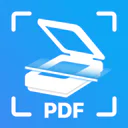
Imagine I receive a four-page form that must be returned by email before the end of the day. I place the pages on a flat surface, capture each one in sequence, check the detected borders, and review the enhanced result before combining everything into a PDF. The important habit is the review step. Automatic processing is helpful, but a fast glance at every page can catch a clipped signature line or a corner that was outside the frame.
For a multi-page document, I would keep the pages in order from the beginning instead of photographing the entire stack and sorting it later. That is a small discipline, but it prevents the most annoying kind of correction: rebuilding a file because one page was inserted in the wrong place. I would also name the finished document immediately with something searchable, such as the organization and purpose, rather than leaving a collection of files with vague camera-style names.
Another practical tip is to separate scanning from archiving. First create and inspect the PDF. Then move or share it through the storage system I already trust. A scanner is excellent at capture, but it should not automatically become my only filing system. Keeping a consistent folder structure makes the app more useful over time, especially when several documents relate to the same project.
Where the automatic enhancement helps most
The strongest part of the concept is the attempt to make phone photography look more like scanning. A page photographed against a contrasting surface can be easier to read once the borders and contrast are corrected. This is particularly useful for black text on white paper, where a clean background and straight edges make the final PDF feel much more professional.
I would be more cautious with documents where color carries meaning. Colored stamps, highlighted clauses, diagrams, receipts, and forms with pale checkboxes deserve a close inspection after processing. A high-contrast treatment may improve ordinary text while making subtle color differences less reliable. For those pages, I would keep the original capture as a reference and avoid assuming that the enhanced PDF is a perfect visual copy.
There is also a difference between readability and archival quality. TapScanner can be a convenient way to send a form or keep a working copy, but people handling irreplaceable records should think about resolution, file organization, and backups separately. The app can simplify capture; it does not remove the need for a sensible document-preservation plan.
What I like about its focused design
I prefer a tool like this when I am already holding the paper and want to finish one clear task. A dedicated scanner interface keeps the path understandable: capture, improve, assemble, and export. That focus is more comfortable than opening a large productivity suite and navigating through features I do not need.
You May Also Like

 Lords Mobile: Kingdom Wars
Lords Mobile Is a Kingdom-Building Routine, Not a Quick Match
A case-by-case verdict on the building, battles, device demands, and social commitments that make Lords Mobile rewarding for some players and exhausting for others.

 Block Blast!
Block Blast! Shows How Much a Puzzle Game Can Leave Out
A quiet grid game shows why puzzle players increasingly value instant clarity, repeatable skill and low-pressure play—and where the genre still needs to catch up.

 Family Space
Family Space Review: A Shared Routine That Makes Family Life Easier
A parenting app earns its place not by adding more noise, but by making everyday coordination easier. Family Space gets that balance mostly right.

 1Weather Forecasts & Radar
1Weather Forecasts & Radar Makes the Daily Check Worthwhile
A good forecast does more than predict rain. This week's pick turns changing conditions into a clear, practical reason to check before you step outside.
 Clash of Clans
Clash of Clans Makes Patience Part of the Strategy
A village builder with a sharp tactical core, Clash of Clans turns patience into momentum and each raid into a small, satisfying act of judgment.

 Uber Eats: Food and Grocery
Uber Eats Under Pressure: What Happens When Delivery Goes Wrong
Uber Eats is polished on the happy path, but its real quality appears after delays, bad taps, weak signals, and orders that refuse to explain themselves.
More From Our News Desk
View All News

Tap AI has also kept the app accessible to a broad audience. The listing shows an average rating of 4.5 from around 2.8 million ratings, which suggests that the basic scanning idea is resonating with a large user base. I would not treat popularity as proof that every scan will suit every person, but it does make the app feel like an established choice rather than an experiment.
The app is free to install, which lowers the barrier to testing it with real documents. That matters because scanning quality depends heavily on a person’s phone camera, lighting, and habits. I can try the workflow before deciding whether it deserves a permanent place in my routine. The presence of in-app purchases, ranging from $1.49 to $99.99 per item, is worth remembering when evaluating the longer-term cost rather than assuming every capability remains free.
Where another type of tool may fit better
TapScanner is not automatically the best answer for every document problem. If I already work inside a cloud storage service or office ecosystem, its built-in scanner may be more convenient because the file lands directly beside the rest of my project. The advantage there is not necessarily better image processing; it is fewer handoffs and less duplicate organization.
A phone’s native camera can be the better choice when I need a quick visual reference rather than a polished PDF. For example, photographing a whiteboard for personal use may be faster than creating a document, and preserving the original colors can matter more than straightened edges. In that situation, a scanner app adds structure I may not need.
A physical scanner remains preferable for large batches, repeated office work, fragile originals, or situations where consistent output matters more than portability. A phone is convenient, but holding it steady over dozens of pages can become tiring. TapScanner is best viewed as a flexible mobile solution, not a replacement for every dedicated scanning setup.
People who need advanced document management should also compare the whole workflow, not just the camera result. Searchable text, team permissions, retention rules, annotation systems, and integration with existing records may be more important than automatic enhancement. I would choose TapScanner for capture-first tasks and look elsewhere when scanning is only one part of a larger controlled information system.
Small frictions that affect the decision
The first friction is quality control. Automatic enhancement is convenient precisely because it makes decisions for me, but those decisions are not always appropriate for unusual paper. I need to inspect pages with faint print, colored marks, handwritten notes, or uneven lighting. That adds a few seconds per page, and skipping it can create a problem later.
The second is the difference between creating a file and managing it. A PDF that looks good but has an unhelpful name, no clear folder, and no backup is only partially useful. TapScanner can be the capture stage of a good system, but I still have to decide where important documents live and how I will find them months later.
The third concerns payment expectations. Free access is attractive, but in-app purchases mean that some users may encounter paid options as their needs become more demanding. I would not begin a business workflow until I had checked which parts of my intended process are available within the free experience and which may require spending. The exact value depends on how often I scan and how much convenience is worth to me.
There is also a practical privacy habit I recommend with any document camera: avoid scanning sensitive papers in a crowded or poorly controlled setting, review the recipient before sharing, and delete temporary copies that no longer serve a purpose. Those are workflow precautions rather than special claims about this particular app, but they matter whenever a phone becomes a document scanner.
Who should use it, and who should skip it
I would recommend TapScanner to students, independent workers, families, and small teams that need a straightforward way to turn occasional paper into shareable PDFs. It is especially suitable for someone who values portability, wants automatic cleanup, and does not want to learn a complicated office application just to scan a few pages.
I would be more hesitant to recommend it as the sole tool for a company with a high-volume scanning desk, strict archival requirements, or a complex approval process. In those cases, a dedicated scanner or a document-management platform may reduce manual checking and provide stronger control over the full lifecycle of each file.
I would also suggest skipping it if the main goal is casual photography, color-accurate reproduction, or direct storage inside an existing service that already handles scanning well. Installing another app can create unnecessary duplication. The best choice is the one that removes steps from the workflow I actually use, not the one with the longest feature list.
What switching to it really costs
Switching from ordinary camera photos to TapScanner is not expensive in money because the app is free to install, but it does cost a little attention at first. I need to learn where the capture controls are, decide how I want to name files, and build the habit of checking page edges and order. That setup is worthwhile if I scan regularly; it may be unnecessary for a single page every few months.
Switching from another scanner app has a different cost. Existing files, naming conventions, and storage habits do not automatically become better just because the camera interface changes. I would test TapScanner on a small batch, compare the finished PDFs side by side, and keep the workflow that requires less correction. There is no benefit in migrating everything if the new app only changes the appearance of the capture screen.
The current release is version 3.0.94, and the app has been available since October 13, 2017. That history, combined with its broad install base, makes it reasonable to consider for an ongoing personal workflow. Still, I would keep important originals and verify exported files before deleting paper, because convenience should not replace a backup plan.
My recommendation after using it
TapScanner is a strong practical choice when the goal is clean, portable PDF capture with minimal setup. I like it most for forms, receipts, notes, and short multi-page documents that need to be sent or stored quickly. The automatic enhancement can turn an ordinary phone capture into something much easier to read, provided I check the result instead of trusting every correction blindly.
Its category is business, but its audience is not limited to offices. The Everyone age rating and simple purpose make it approachable for personal paperwork too. The developer, Tap AI, has produced an app that feels more useful when treated as one part of a document routine: capture carefully, review every page, name the file clearly, and archive it somewhere dependable.
My final decision would be simple. I would install it if I often receive paper away from a scanner and want a free starting point that can grow with my needs. I would choose a native cloud scanner for a workflow already centered on one storage service, a camera for quick visual notes, or dedicated hardware for heavy and controlled scanning. For everyone in between, TapScanner is worth trying because it addresses a real everyday nuisance without demanding a full office system.
After a short test with the kinds of pages I actually handle, I would know whether its enhancement is gentle enough, its PDF workflow is convenient enough, and its paid options fit my expectations. That is the right way to judge it: not by the promise of a perfect scan, but by whether it consistently helps me finish paperwork faster and with fewer corrections.
FAQs for PDF Scanner app - TapScanner
01What features does TapScanner offer for scanning documents?
TapScanner provides a variety of features for scanning documents, including automatic edge detection, high-quality PDF output, and OCR (Optical Character Recognition) to convert images into editable text. It supports multiple file formats like PDF and JPG, and offers tools for organizing and sharing scanned files easily.
02Is TapScanner suitable for both personal and professional use?
Yes, TapScanner is designed to cater to both personal and professional needs. It’s user-friendly for personal document scanning, such as receipts and notes, while also offering advanced features like batch scanning and cloud storage integration, which are beneficial for professional use and businesses.
03How does TapScanner ensure the quality of scanned documents?
TapScanner uses advanced image processing algorithms to ensure the highest quality of scanned documents. It enhances clarity by adjusting brightness, contrast, and sharpness automatically, and allows manual adjustments to achieve optimal results. The app also supports high-resolution outputs for professional-quality scans.
04Does TapScanner offer cloud storage integration?
Yes, TapScanner integrates with popular cloud storage services such as Google Drive, Dropbox, and OneDrive. This feature allows users to save and access their documents from any device, ensuring seamless workflow and easy backup of scanned files.
05Is TapScanner free to use, or does it require a subscription?
TapScanner is available as a free download with basic features. However, for advanced functionalities like unlimited scans, ad-free experience, and enhanced OCR capabilities, a premium subscription is required. The app offers various subscription plans to suit different user needs and budgets.
Pros
- Easy to use interface for quick scanning.
- High-quality scans with adjustable settings.
- Supports multiple file formats like PDF
- JPG.
- Integrated OCR for text recognition.
- Cloud integration for seamless document storage.
Cons
- Ads can be intrusive in the free version.
- Limited features without a premium subscription.
- Occasional bugs with large document scans.
- OCR accuracy can vary with complex texts.
- Requires internet for some advanced features.

PDF Scanner app - TapScanner
Gallery